
Yfantis 4: logging in with Bitwarden and 2FA
This chapter explains how to prepare for logging into Yfantis 4 if you previously had an account in Yfantis 3 or earlier.
In this example we use Bitwarden as a password manager. Bitwarden offers a free password vault, browser extensions for common browsers, and a built-in authenticator app for two-step verification.
What you need
- A password manager — for example Bitwarden.
- Your existing Yfantis password, so you can store it in your password manager.
Chapter 1: Bitwarden as a browser extension
The Bitwarden browser extension helps you fill in passwords automatically when you log in. Bitwarden supports browser extensions for common browsers such as Chrome, Firefox, Safari, and Edge.
Installing
- Open your browser.
- Go to the Bitwarden download page.
- Choose your browser.
- Install the extension.
Creating an account
- Click the Bitwarden icon in the browser.
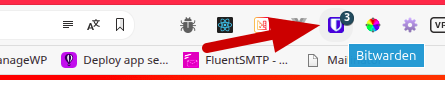
- Choose to create a new account.
- Enter your email address.
- Choose a strong master password.
The master password is the only password you will still need to type yourself in future. Choose a strong password that you can still remember — it is the key to all your other passwords.
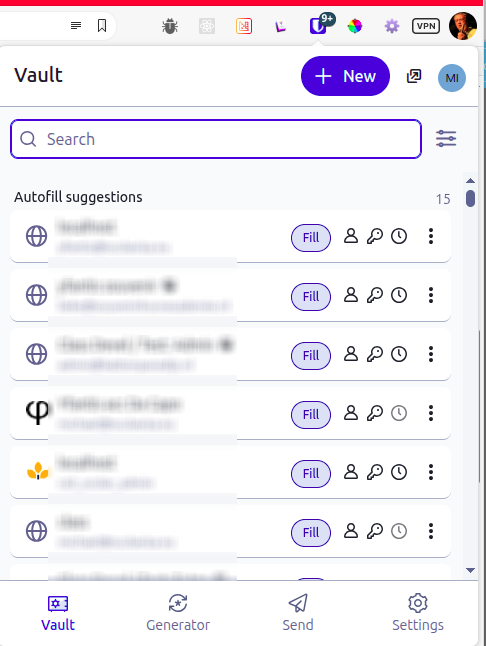
Adding your Yfantis account
- Open your Bitwarden vault.
- Click the plus icon in the top-right corner.
- Choose Login.
- Enter your username (your Yfantis email address).
- Enter your current Yfantis password.
- Click Save.
Tip for regular use
- Pin the Bitwarden icon to your browser toolbar.
- Use the extension to fill in passwords automatically.
Chapter 3: Logging in to Yfantis 4
You log in to Yfantis 4 with your username and password, followed by an extra security code via two-step verification (2FA). That is exactly what an authenticator app is for: generating a temporary code that is only available on your device. The first time you log in, the authenticator app must be set up so it can generate codes you will use for future logins. This process starts automatically the first time you log in when you have not yet set up 2FA.
First-time login
- Go to Yfantis.
- Enter your username and password.
- Yfantis will now ask you to set up an extra security code for two-step verification.
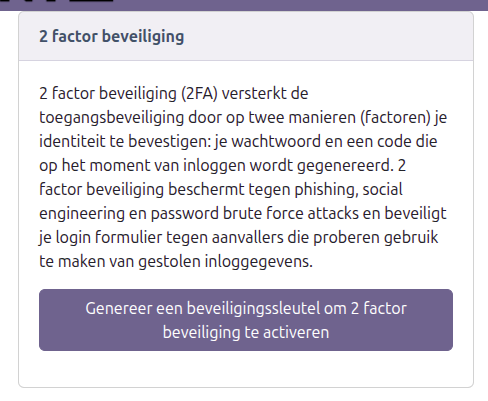
- Click the generate button. A code is created that only you know.
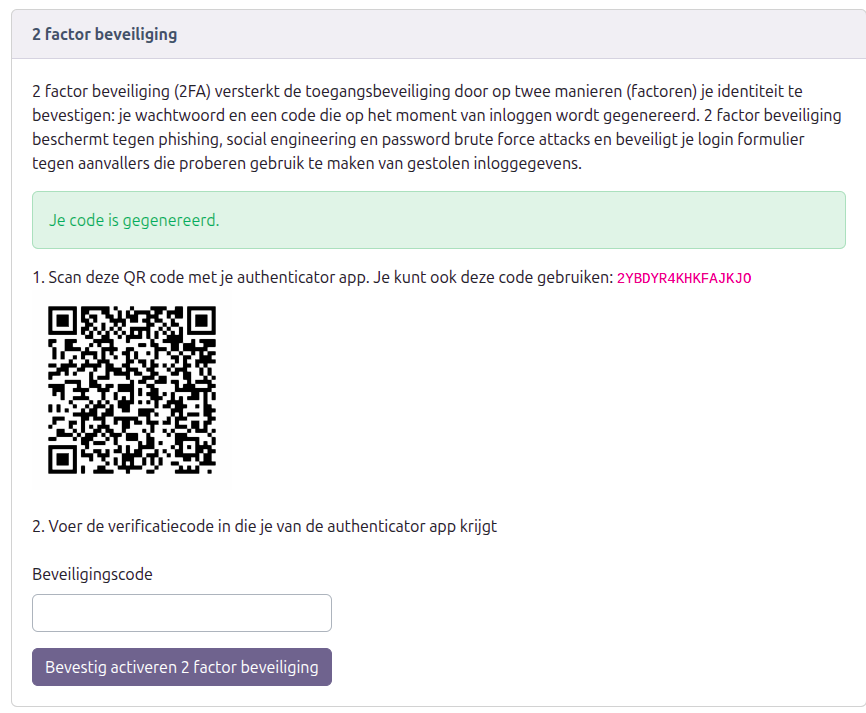
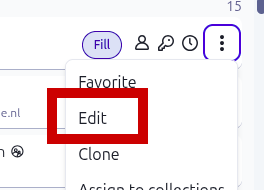
- Open Bitwarden, find your Yfantis account and open it, then add the verification key there (or enter the secret as shown in Yfantis).
- Enter the code you see in Bitwarden (or your authenticator).
If the code does not work
- The code is valid for about 30 seconds. Wait briefly for a new code. In the browser app you can see when the code refreshes.
- Check that the time on your phone is set automatically. A time difference between the computer and the phone can cause issues (rare).
Chapter 4: Managing 2FA via your profile in Yfantis
Once you have logged in successfully, you can manage your 2FA settings on your profile page in Yfantis. There you can also choose a new password and remove 2FA if you want to start again with a different authenticator. If you turn off 2FA, you are taken back to the beginning of the process described in Chapter 3.
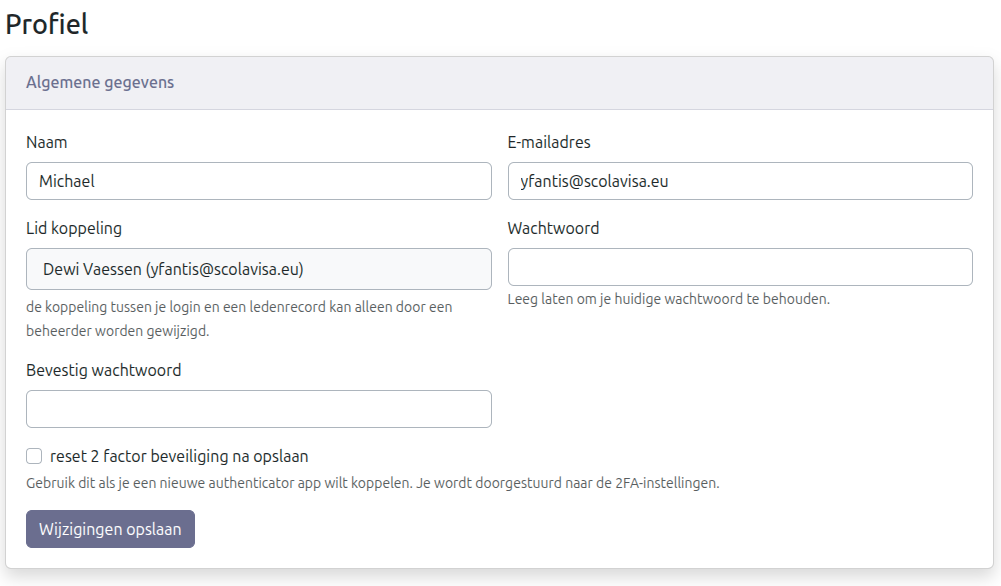
When do you use this?
Use this step if:
- You are going to use a different phone.
- You are switching to a different authenticator app.
- You want to reset your 2FA setup.
Why this is necessary
Yfantis contains personal data about members. That data has been entrusted to us and must be protected carefully. The extra security helps us meet that responsibility.
OPTIONAL: Bitwarden on your phone
Bitwarden has a free phone app that is suitable for storing passwords securely. The app works on both Android and iPhone and can also be used to store login details and verification codes. This step is optional. It is handy for websites you use on your phone, but for Yfantis it is not required. It means you do not have to type passwords by hand on your phone either.
Another benefit:
A password manager makes your life much easier. Are you using a different browser, or did you get a new phone or computer? No problem. You install the app or plugin, log in once, and all your passwords are immediately available again. You don’t have to remember or reset anything. For your safety, there’s one important tip: turn off the option to save passwords in your browser. If someone gains access to your browser, they could log in to your accounts without even knowing your passwords. A password manager keeps your information much better protected.
Installing
- On your phone, open the app store.
- Search for Bitwarden.
- Install the app.